Consistent serifs and stem widths
- Font Creation
- Creating a glyph (tracing outlines)
- Create glyph outlines using spiro points
- Importing a glyph from Inkscape (or Illustrator, or some other vector editor)
- Navigating to other glyphs
- On to the next glyph (consistent directions)
- Consistent serifs and stem widths
- Building accented glyphs
- Building a ligature
- Lookups and features
- Examining metrics
- Kerning
- Glyph variants
- Anchoring marks
- Conditional features
- Checking your font
- Generating it
- Font Families
- Final Summary
- Bitmap strikes
- Scripting Tutorial
- Notes on various scripts
- Searching the documentation: (Powered by Google)
Creating letters with consistent stem widths, serifs and heights.
Many Latin (Greek, Cyrillic) fonts have serifs, special terminators at the end of stems. And in almost all LGC fonts there should only be a small number of stem widths used (ie. the vertical stem of “l” and “i” should probably be the same).
FontForge does not have a good way to enforce consistency, but it does have various commands to help you check for it, and to find discrepancies.
Let us start with the letter “l” and go through the familiar process of importing a bitmap and defining its outline.

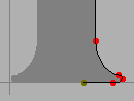
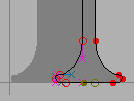
The imported image
Use the magnify tool to examine the bottom serif, and note that it is symmetric left to right.
Outline the right half of the serif
select the outline, invoke Edit -> Copy then Edit -> Paste, and
finally Element -> Transform -> Transform and select Flip (from
the pull down list) and check Horizontal
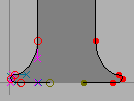
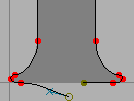
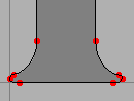
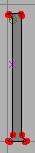
Drag the flipped serif over to the left until it snuggles up against the left edge of the glyph
Deselect the path, and select one end point and drag it until it is on top of the end point of the other half
Finish off the glyph
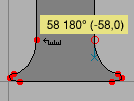
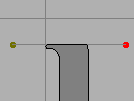
But let’s do two more things. First let’s measure the stem width, and second let’s mark the height of the “l”
Select the ruler tool from the tool palette, and drag it from one edge of the stem to the other. A little window pops up showing the width is 58 units, the drag direction is 180 degrees, and the drag was -58 units horizontally, and 0 units vertically.
Go to the layers palette and select the Guide radio box (this makes the guide layer editable). Then draw a line at the top of the “l”, this line will be visible in all glyphs and marks the ascent height of this font.
Now let’s do “i”. This glyph looks very much like a short “l” with a dot
on top. So let’s copy the “l” into the “i”; this will automatically give
us the right stem width and the correct advance width. The copy may be
done either from the font view (by selecting the square with the “l” in
it and pressing Edit->Copy) or from the outline view (by
Edit->Select->Select All and Edit->Copy). Similarly the Paste may be
done either in the font view (by selecting the “i” square and pressing
Edit->Paste) or the outline view (by opening the “i” glyph and
pressing Edit->Paste).
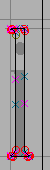
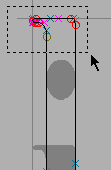
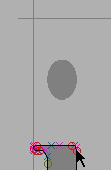
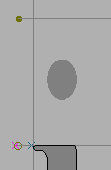
Import the “i” image, and copy the “l” glyph.
Select the top serif of the l
drag it down to the right height
go to the guide layer and add a line at the x-height
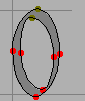 Let’s look briefly back at the “o” we built before. You may
notice that the “o” reaches a little above the guide line we put in to
mark the x-height (and a little below the baseline). This is called
overshoot and is an attempt to remedy an optical illusion. A curve
actually needs to rise about 3% (of its diameter) above the x-height for
it to appear on the x-height.
Let’s look briefly back at the “o” we built before. You may
notice that the “o” reaches a little above the guide line we put in to
mark the x-height (and a little below the baseline). This is called
overshoot and is an attempt to remedy an optical illusion. A curve
actually needs to rise about 3% (of its diameter) above the x-height for
it to appear on the x-height.
Let’s look at “k”. Again we will copy an “l” into it and import an appropriate image.
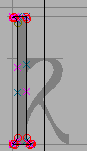
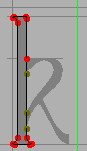
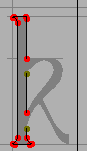
Import the “k” image and copy the “l” glyph. Note that the x-height line matches the “k” (as we would hope). Also note that the width of the “l” is inappropriate for “k” so we’ll have to select it and drag it over.
Select the knife tool from the palette, and cut the stem of the “l” shape at appropriate points for “k”.
Remove the splines between the cut points. An easy way to do this is to
grab the spline itself, (which selects its end points) and then do
Edit -> Clear.
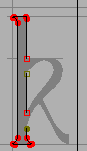
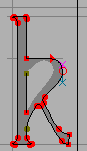
Select the end points and convert them into corner points with
Point -> Corner.
Then draw in the outer contour.
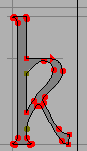
And the inner contour. Finally do an
Edit -> Select -> Select All and an
Element -> Correct Direction.